Adding and Removing Display Tabs
You can add multiple displays tabs to organize displays and to optimize the space on the Display Panel. Each new DAQami configuration has one display tab named Display Tab 0.
Click  to add a new display tab where you can place other displays.
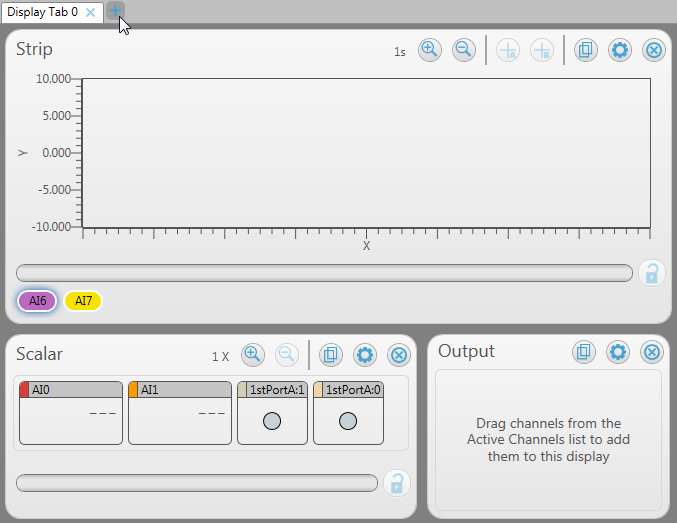
Distributing displays among multiple display tabs minimizes the need to scroll horizontally and/or vertically to add and access displays.
Context menu
Right-click on a display tab to show a menu with the following options:
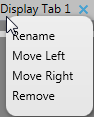
- Rename: change the title shown on the display tab.
- Move Left: move the tab one position to the left in the tab order (disabled for the leftmost tab).
- Move Right: move the tab one position to the right in the tab order (disabled for the rightmost tab).
- Remove: removes the display tab from the Display Panel (disabled if only one tab exists).
You can also remove a tab by clicking  on the tab.
Important: Once a display is added to a display tab, it cannot be moved to another tab. If you remove a tab, all displays are removed with it. Make sure you do not need or can easily recreate the displays that are on tab you want to remove.